Features

A day with agents, screen by screen

From capturing a task to accepting its diff: your tasks, chosen agent, worktree, graph, terminal and Git. See the latest 0.33.0 changes below. Screenshots from earlier versions illustrate the workflow; panel layouts have changed in the updated interface.

01 · Tasks

The unit of work is a task, not a file.

Each task has its own ID, description, priority and project stage. Capture it in your backlog without an external tracker, agent or worktree. Pulse creates a separate branch and git worktree when work starts. Another attempt can use another worktree under the same task.

Whiteboard: everything you need to know in one line

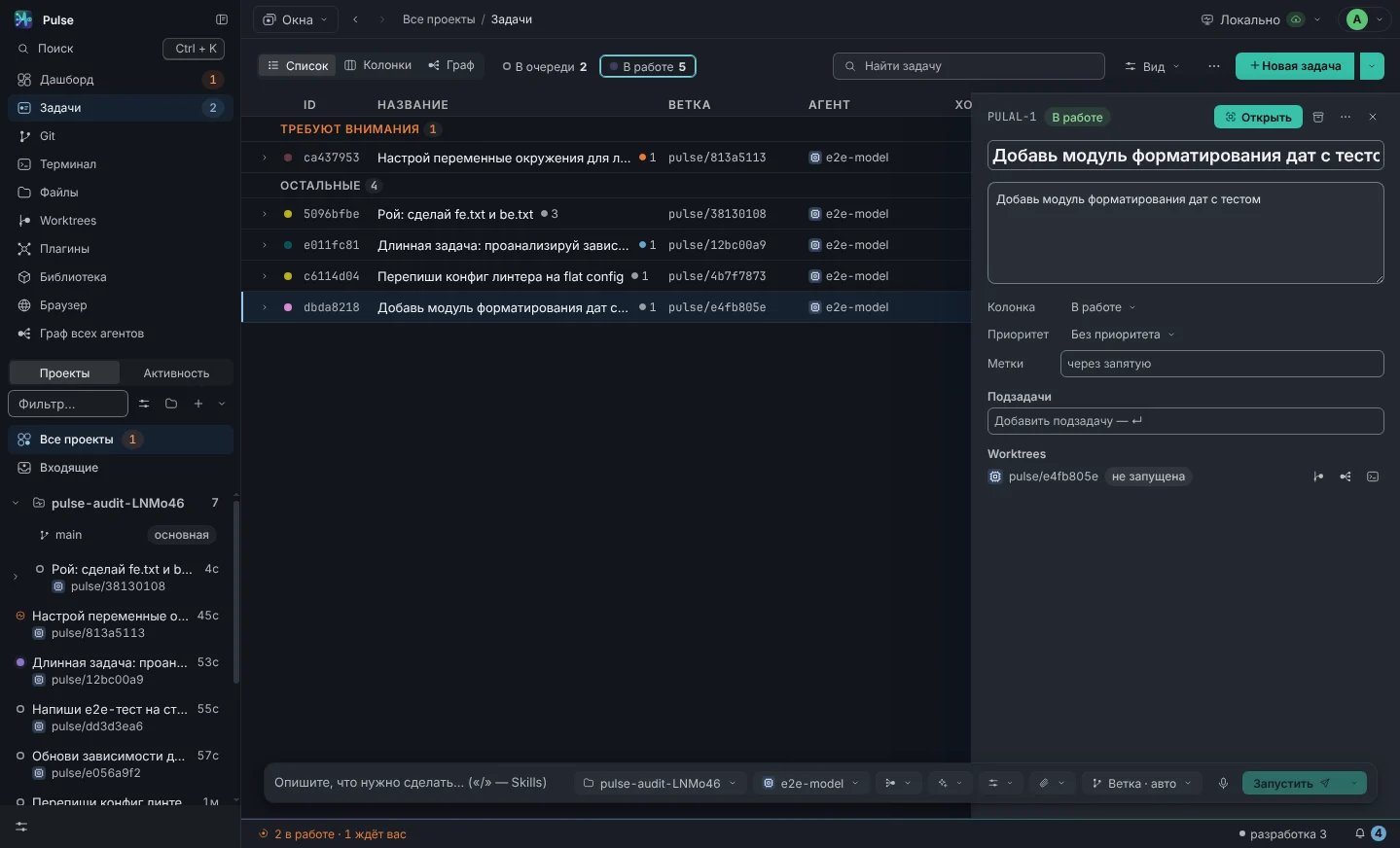
Branch, agent, number of turns and tool calls, tokens, cost, status and age. Click - preview on the right: last agent response, prompt, session. Double click - inside.

  • Five statuses: Pending · Running · Ready · Error · Stopped. “Waiting” means the agent needs your response.
  • Search by title, ID and branch by ⌘ K; filters by status, agent, repository.
  • Composer below: repository, agent or swarm, resource clip, / for skills, “Launch” or “Prepare”.
Task board with a list: branch, agent, turns, calls, tokens, cost, status; on the right is a preview panel with the latest answer
List of tasks and preview of the selected one

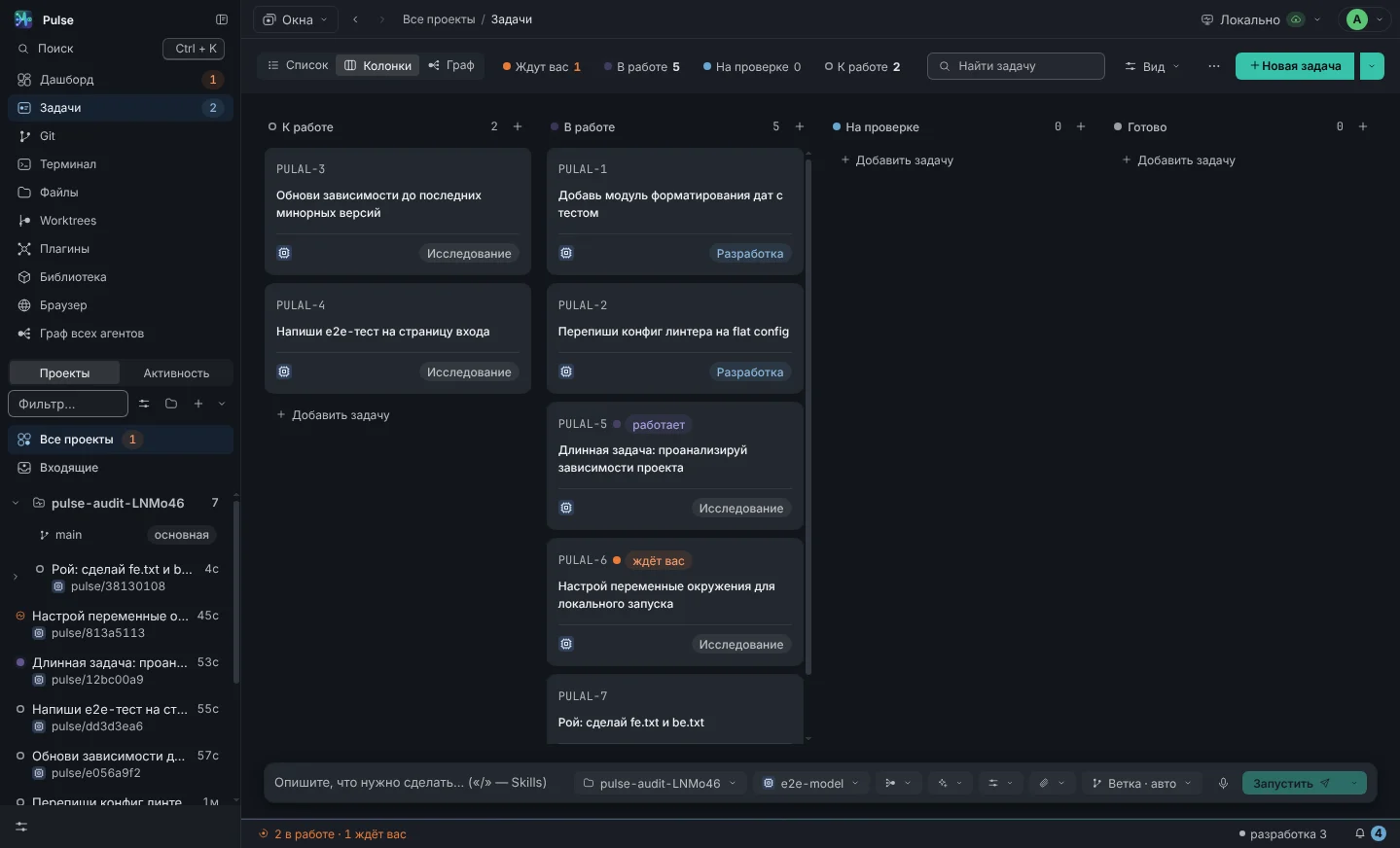
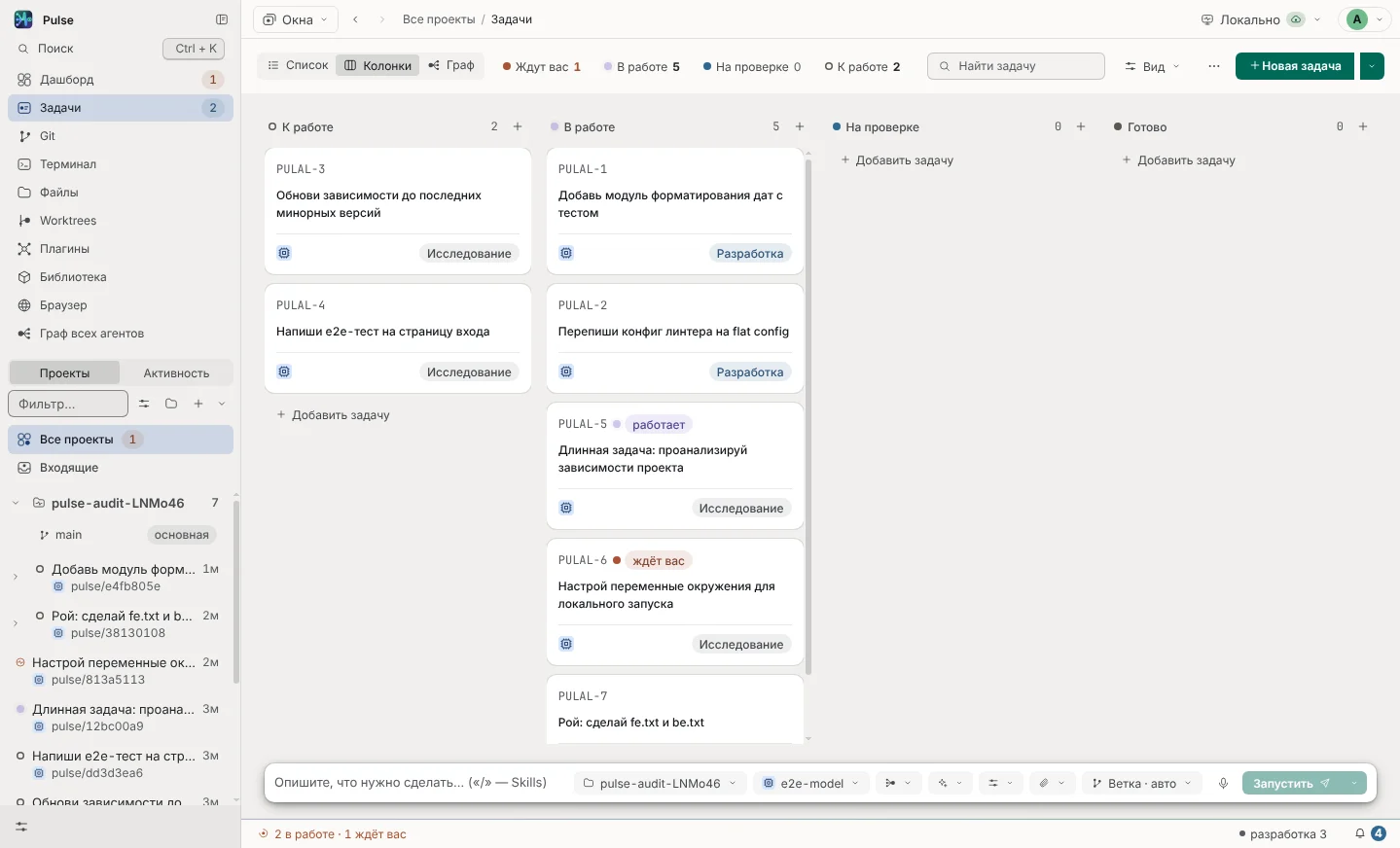
Columns: same board as kanban

Customize project columns and move cards between stages. Waiting and Error appear as badges and in the Needs Attention filter. Moving a task to Cancelled stops its agents; Done does not replace explicit result acceptance.

  • The card shows ID, name, turns, challenges, tokens, agent and time since the last event.
  • The “Run” button is right on the prepared task - you can assemble a batch and run it at once.
  • Third type - Agent Graph the entire board, about him below.
Tasks → Columns
Board with columns: Todo, In progress, Waiting, Done, Error - task cards with agent and counters
Kanban by status
02 Observability

See what the agent did, not what he said

The chat window shows the last comment. The graph shows the work: every turn, every tool call, every file, every permission - and allows you to rewind.

Agent Graph of the entire fleet

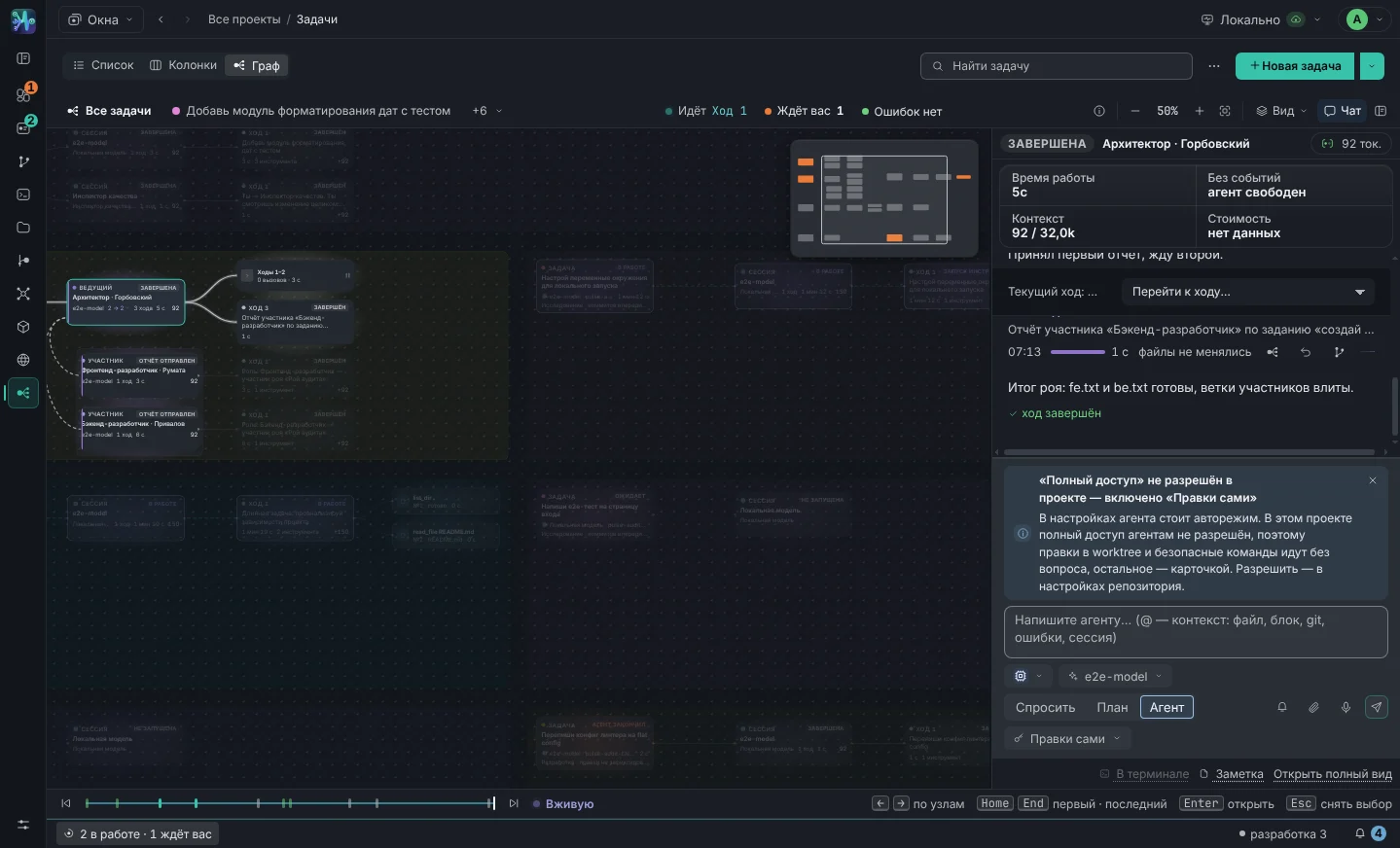
All tasks, their sessions and turns on one canvas. The nodes light up according to their status: in operation, waiting, ready, error. On the right is the chat of the selected session, on the bottom is the timeline. This is the screen that is open all day for someone who manages several agents.

  • Task tracks painted in a circle of eight shades - you find your task with your eyes, without reading.
  • Click on a node opens its contents: text of the turn, call arguments, command output.
  • Opens from any section ⌘ ⇧ G.
Tasks → Agent Graph
Agent Graph of the entire fleet: tasks, sessions, turns and tool calls on one canvas, on the right is the chat of the selected session
Graph of all tasks

Single task graph with rewind

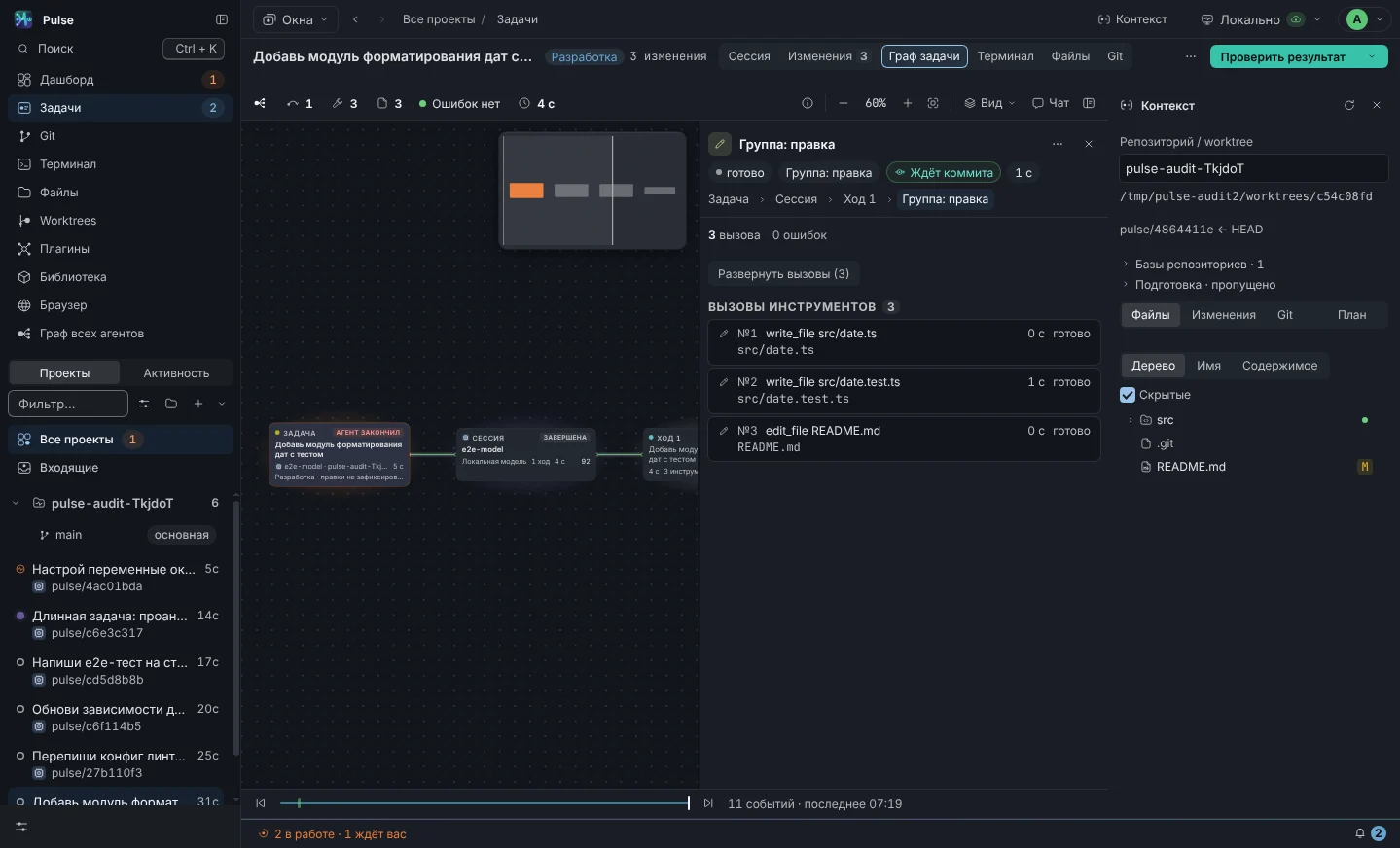
Task → sessions → turns → tool calls, subagents, files. Identical calls collapse into groups like “Read · 26”, the depth is adjusted with a slider, and the entire path to the selected node is highlighted. The timeline below rewinds the graph and chat to any moment in the past - you can see what the agent knew on the fifth turn.

  • Nodes are redrawn only when visible fields change: the graph does not twitch, even when events fly in batches.
  • Subagents of external agents are visible in separate branches with their own calls.
  • Events come from the main process in batches of 40 ms - the interface does not slow down during long sessions.
Problem → Graph
Task graph: subagent selected, its command and output on the right, timeline at the bottom
Task graph, subagent selected

Session: chat that doesn't lie

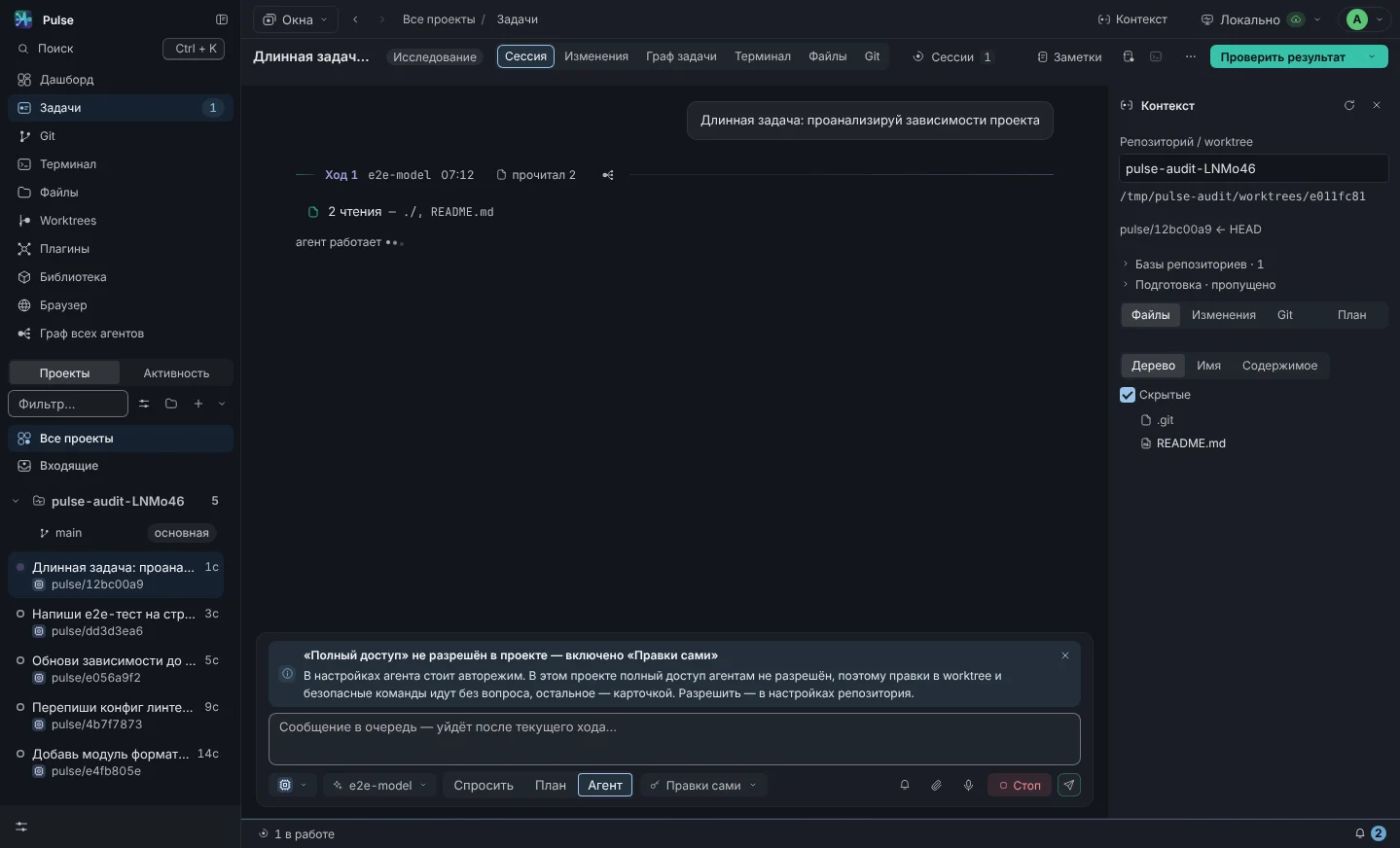
A regular chat with an agent, but each call to a tool has a card with arguments and output, each request for permission has a card with buttons, each turn has a cost. On the left is a column of sessions: a task can have several of them, each a separate agent process on the same worktree.

  • Changing session agent chip: the new agent will receive a summary of the previous conversation.
  • Task notes the columns below go into the context of the first turn of each session.
  • The chat opens on the last action and remains nailed to the bottom until you scroll up.
Task → Session
Session chat: turns, tool call cards, permissions, sessions column on the left
Chat session with call cards

Dashboard and Activity

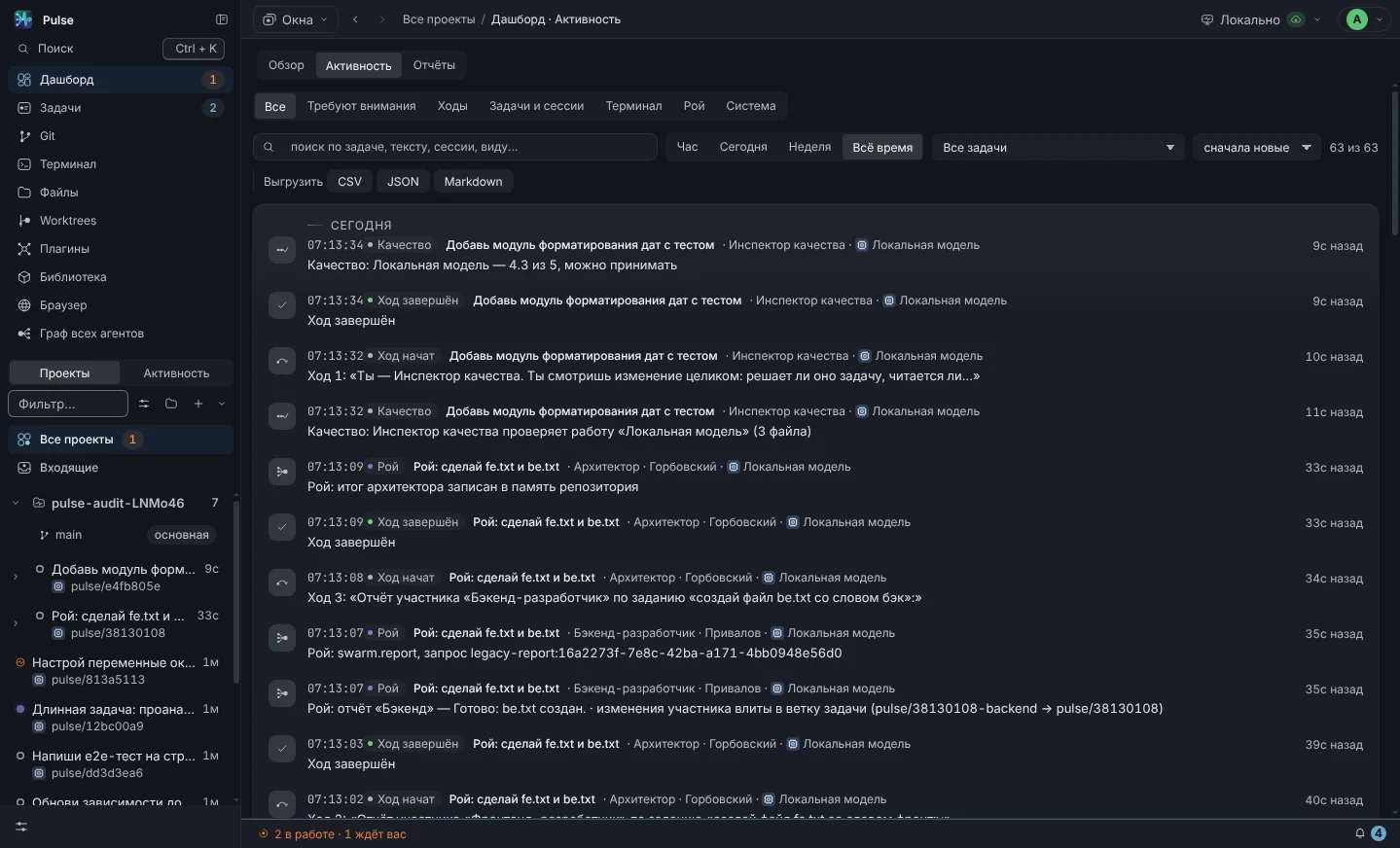
The dashboard answers five questions at once: how many tasks are in progress, how many working copies are there, who is waiting for an answer, where is the error, how much has been spent. Activity is a log of everything that happened: with search, filters by type and task, periods and time of each entry.

  • Each tape entry leads to its own task and session.
  • In the feed you can also see decisions on permissions: who allowed it - a person, a rule or auto mode.
  • Status bar at the bottom of each section: what's happening now, notifications about agents and updates.
Dashboard · ⌘ 1 Activity · ⌘ 4
Activity: search, filters by type and task, periods, time of each entry
Activity feed with filters
03 · Agent Team

Several agents per task - and one who checks them

The “Team” chip launches several variants of an agent over one prompt. Swarm goes further: the architect studies the code and distributes tasks to the roles. The inspector evaluates what they have done using a strong model.

Swarm: architect, roles, reports, summary

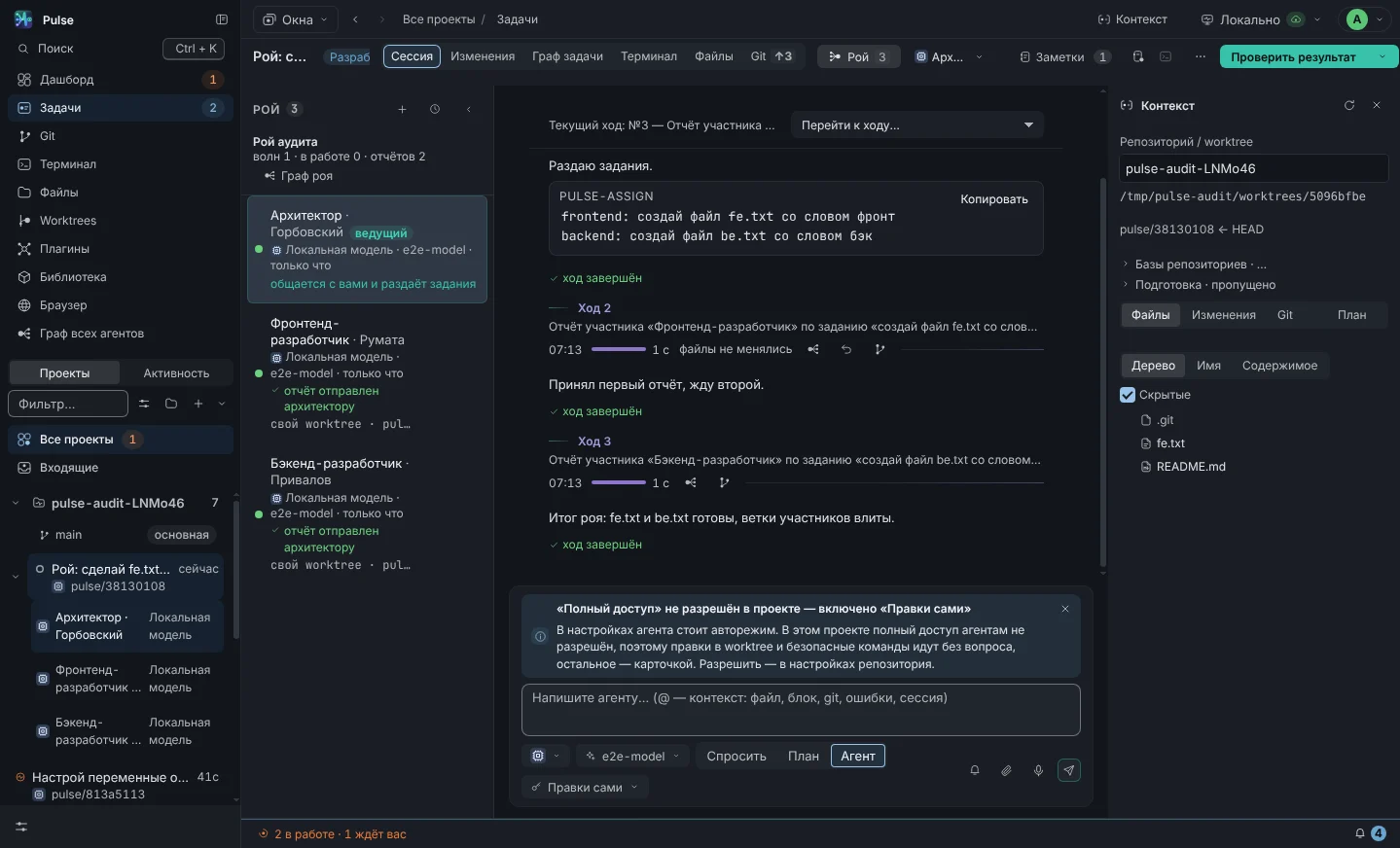
You set the task as you would set it for a team. Only the architect speaks to you: he inspects the repository, distributes tasks in blocks pulse-assign, receives reports and summarizes. Developers each work in their own working copy, their branches are merged back into the task branch.

  • Eleven roles, including three inspectors; Reviewers are prohibited from editing files at the policy level.
  • The merge conflict is rolled back and goes to the architect with a list of files.
  • The fallen participant receives the task again; stuck for 20 minutes - interrupted.
Composer → chip "Swarm" Agent Swarm Page
Task-swarm: role column with tasks and reports, architect’s summary, notes and repository memory
Column "Swarm" inside a task

Swarm on the graph

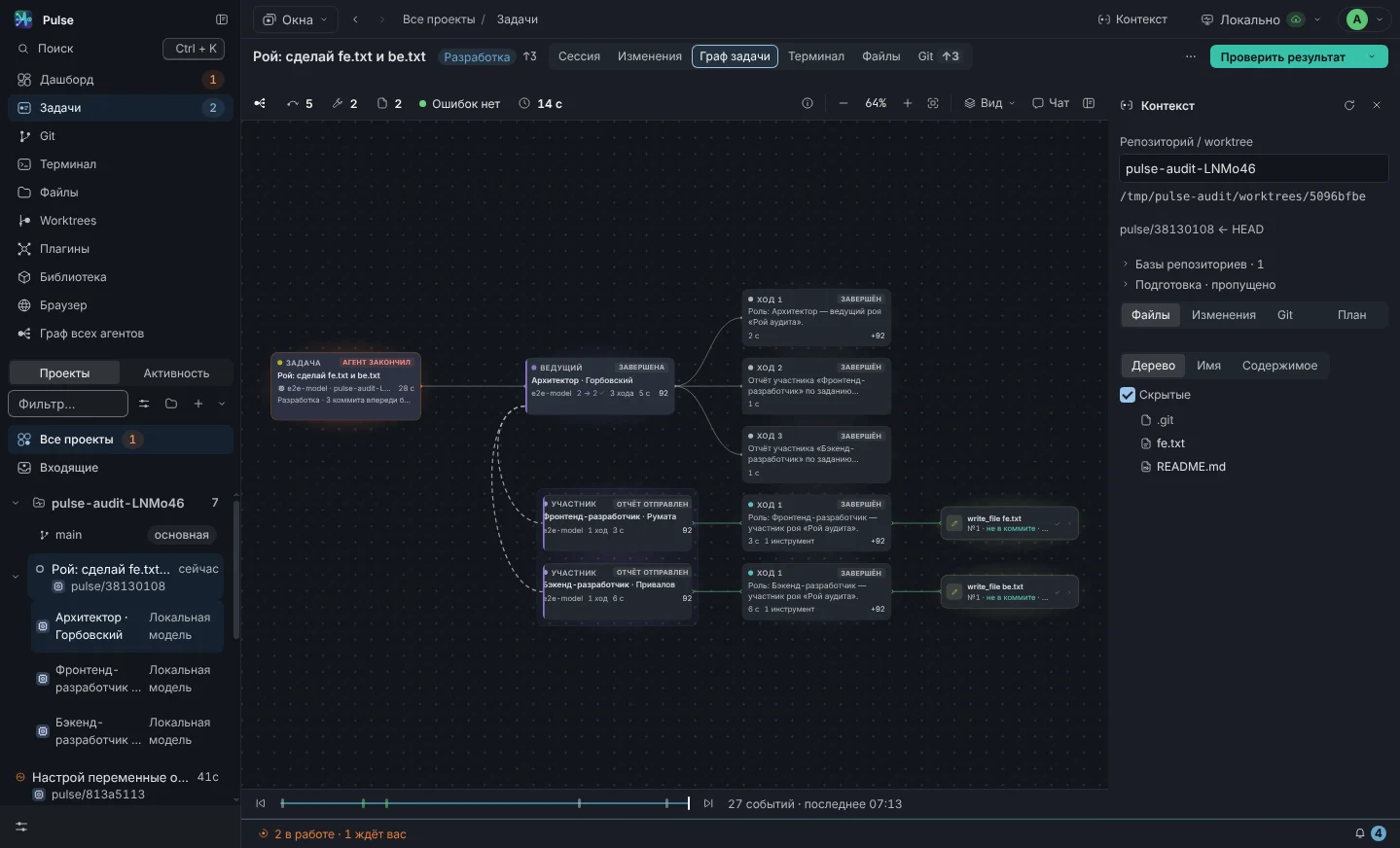
The same task on the graph: role sessions diverge from the task, each with its own turns and challenges. You can see who has already reported, who is still working, and who has an error. On the right is the architect’s chat with a block of tasks.

  • Swarm waves - one block of tasks and all reports on it - are counted and shown in a column.
  • The ✈ button on a participant sends him a task directly from you; the report will still be returned to the architect.
Problem → Graph
Swarm graph: task → role sessions → turns, on the right is the architect’s chat with the pulse-assign task block
Swarm on the task graph

Quality inspector: strong model checks weak one

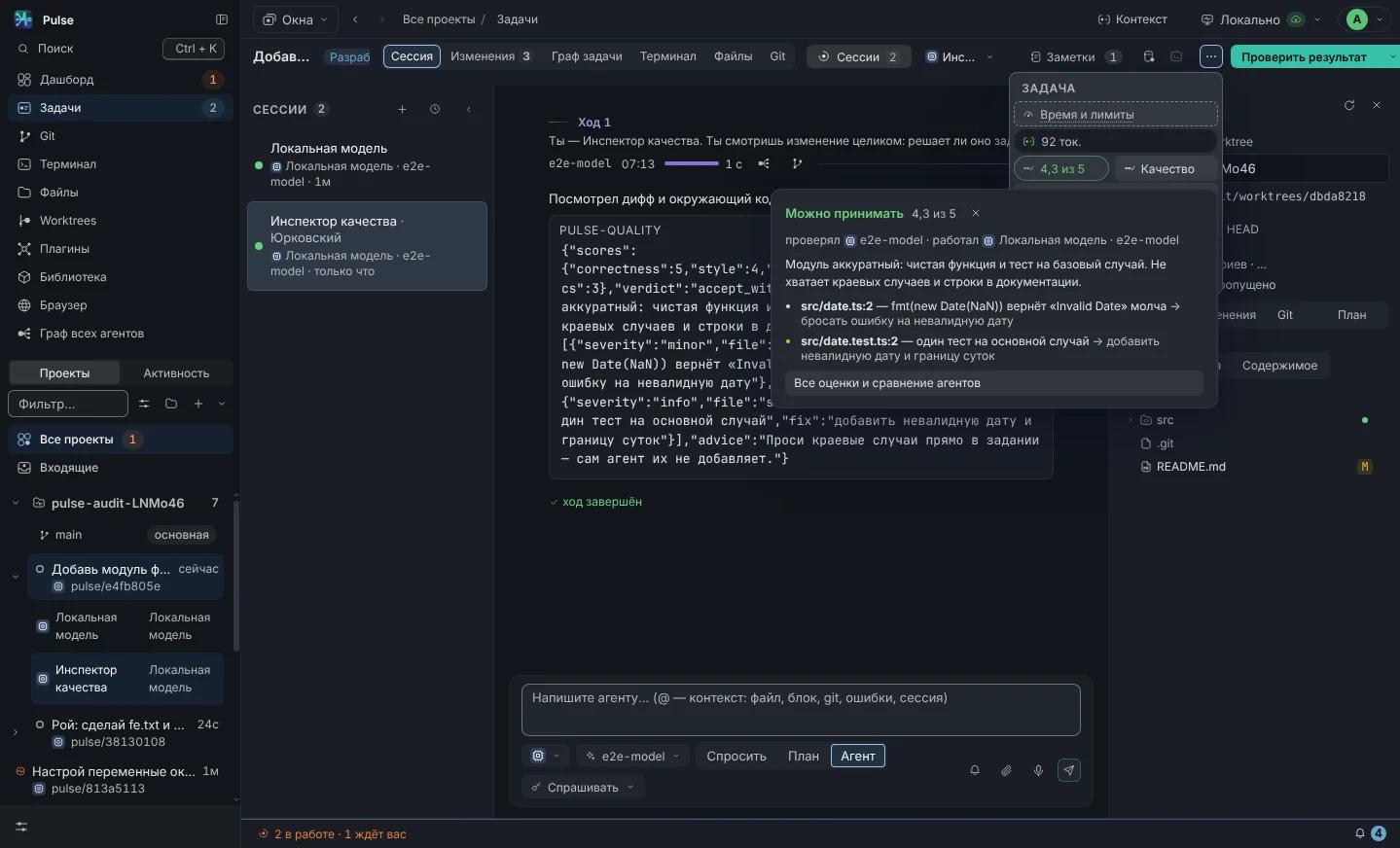
The “Quality” button in the task header launches the inspector on the agent’s last job. He reads the diff, gives a score on six axes from 0 to 5, writes the findings “file: line - problem - how to fix” with criticality, makes a verdict and one correction to the author for the future. He is not allowed to rule.

  • Axles: correctness, readability, tests, security, within the task, comments.
  • Automatically — when the agent has completed his turn; the same work is not checked twice.
  • The role is selected based on the composition of the files: the preponderance of client files is “Front End Inspector”, and server files are “Backend Inspector”.
Task → “Quality” Inspectors in documentation
Inspector's report on the problem: assessment on six axes, verdict, findings with file and line, correction to the author
Inspector's report in the task

Who writes better

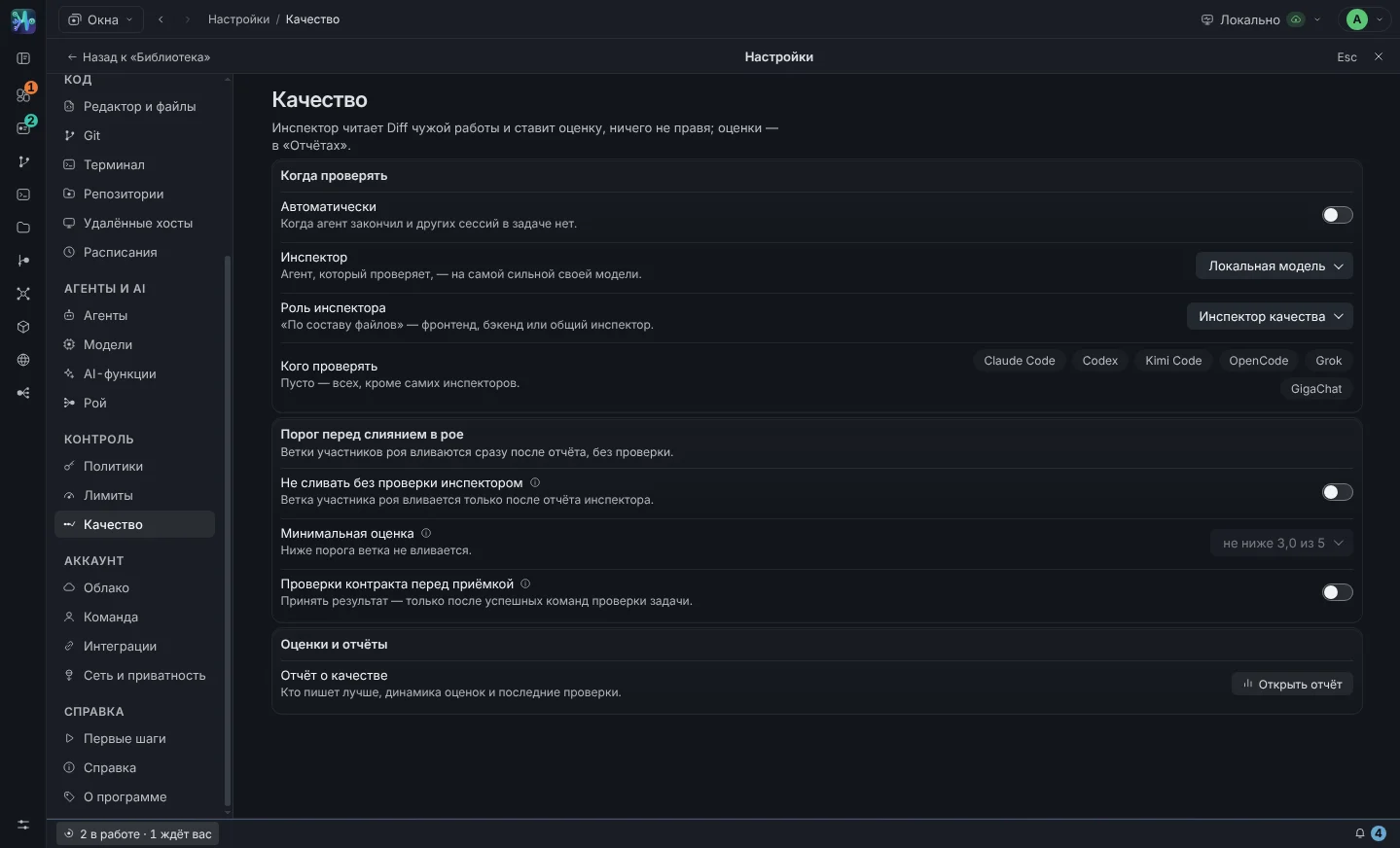
Ratings are accumulated in the “agent + model” section: average score, number of checks, averages on each axis, critical findings and last adjustment. The leader is highlighted. After twenty checks, this is no longer an opinion, but statistics: who to trust with what tasks, who to always double-check.

  • An example from a real test: Opus 5 looked at the work of GigaChat-2-Max and gave 0.5 out of 5 - “remake”.
  • Correction to the agent from the same report: “demand proof of assembly - output of tsc and tests in the report.”
  • Checking costs money: this is a separate session of a strong model, the task budget also stops it.
Settings → Quality
Settings → Quality: auto-check, “who writes better” table by agents and models, latest reports
Comparison of agents by ratings

Agents and models in one place

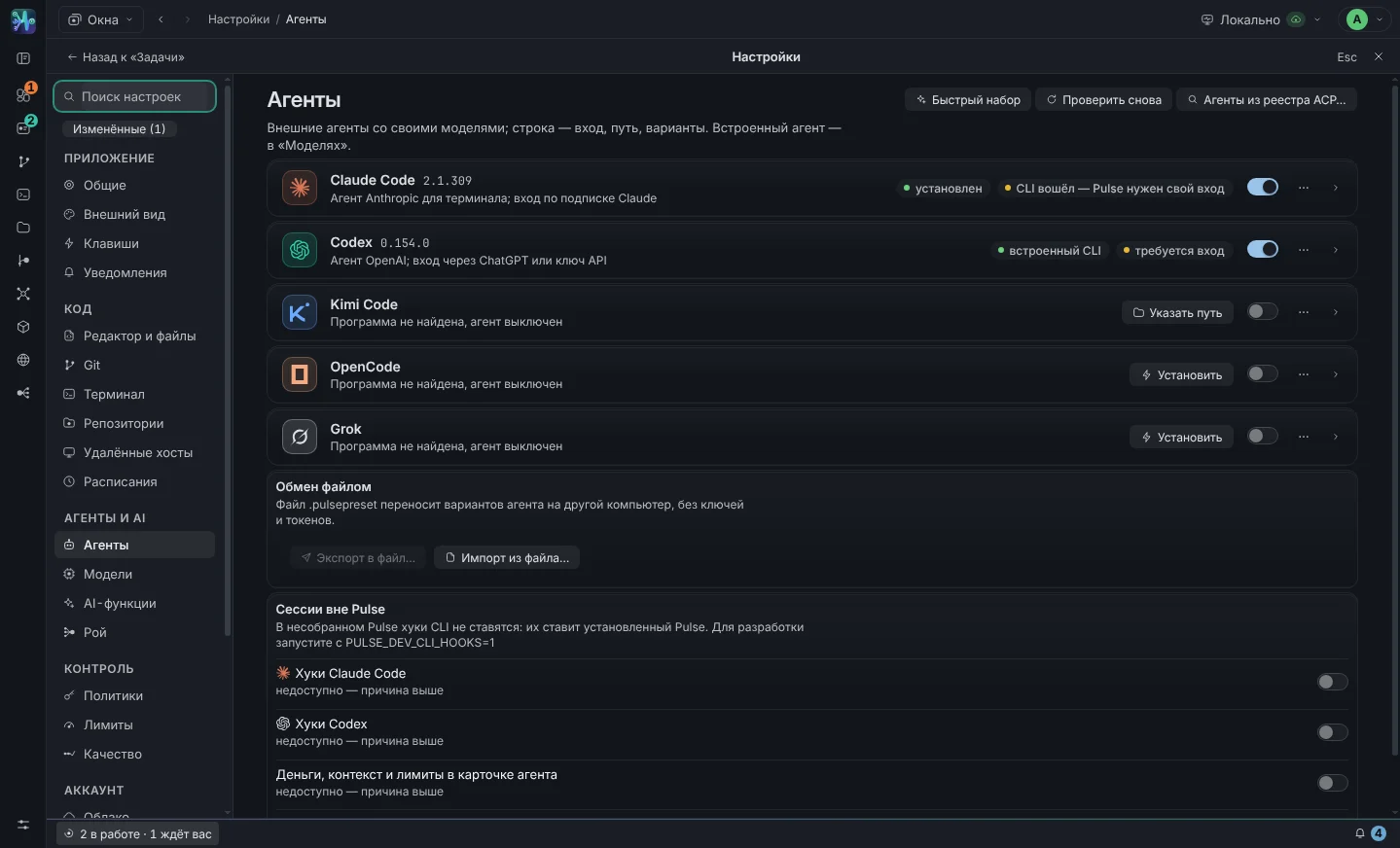
Two settings sections. Agents — those that are in your system: Claude Code, Codex, Kimi Code, OpenCode, Grok; Pulse runs them using the ACP protocol. Models — the brain for the built-in Pulse agent: local server or GigaChat. Each card has a connection status, a login or verification button, default settings, and agent options.

  • Agent options: name, role, instructions, model, mode, effort, auto mode, skills, color.
  • Speed dial with one button: Lead, Developer, Reviewer, Tester on available agents.
  • Model by hand — id that is not yet on the agent’s list: new models are connected on the release day.
Settings → Agents, Models · ⌘ 5 Agents and Models page
Settings → Agents: Claude Code, Codex, Kimi Code, OpenCode and Grok cards with statuses and versions
Agents and models
04 · Control

Agent - performer. The decisions are yours

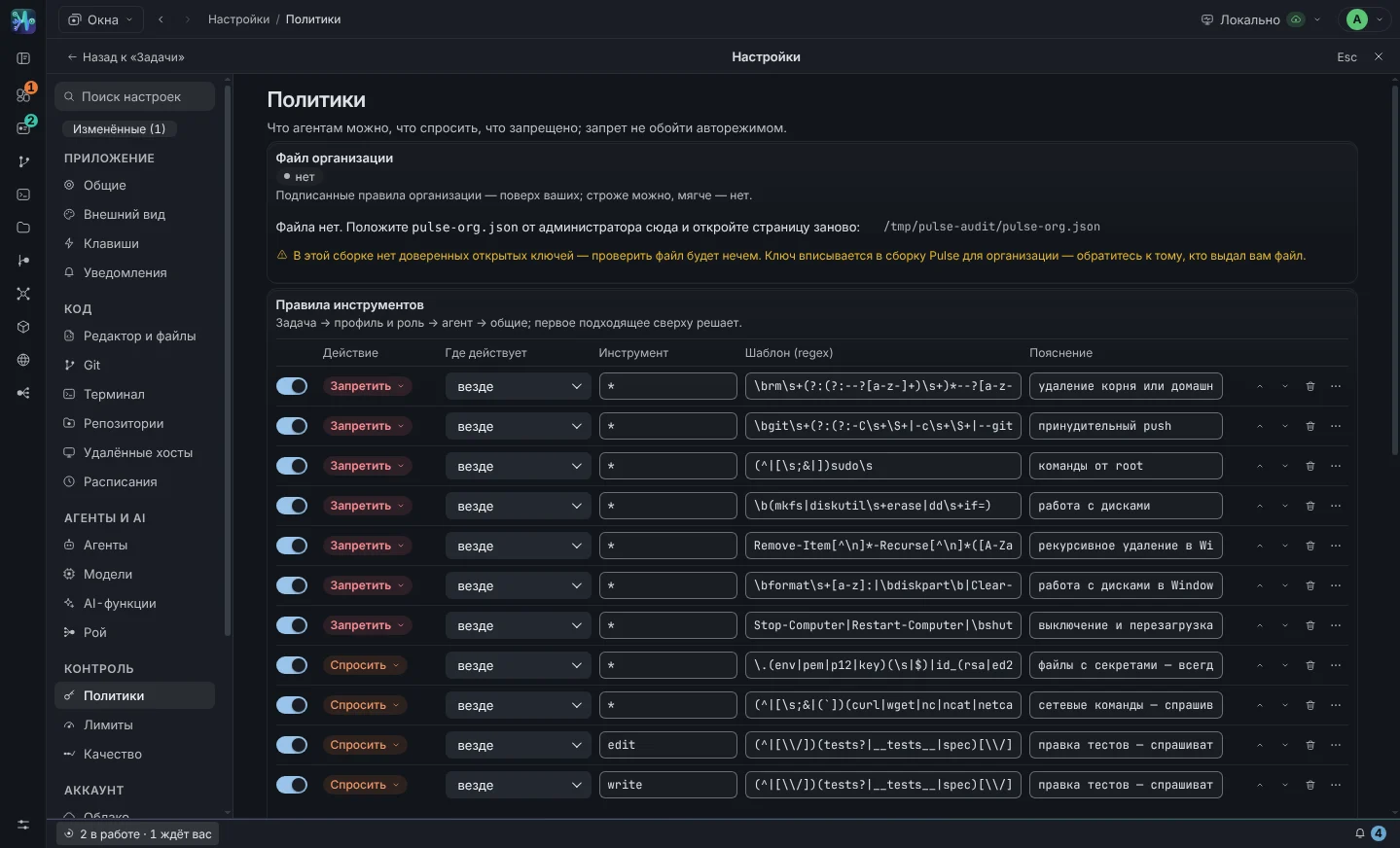
Six levels: permissions, auto mode, policies, budgets, sandbox, audit. Politicians are stronger than auto mode - what is prohibited by the rule remains prohibited.

Politicians, budget, sandbox

Allow/ask/deny rules by tool and regular expression, top to bottom, first matching one decides. Disabled by default rm -rf /, git push --force, sudo, work with disks; files with secrets require confirmation. The budget limits the cost of the task, the sandbox keeps the built-in agent commands inside the worktree.

  • The role is stronger than the rules: reviewers and inspectors cannot edit files at all, in any mode.
  • Budget: task limit in USD and warning threshold; When exhausted, sessions are stopped.
  • Audit uploads a Markdown report: who ran what, what permissions were issued and by whom, what rules worked.
Settings → Policies Control and Data Page
Settings → Policies: list of rules with action, tool and template, “Budget” and “Sandbox” blocks
Rules, budget, sandbox

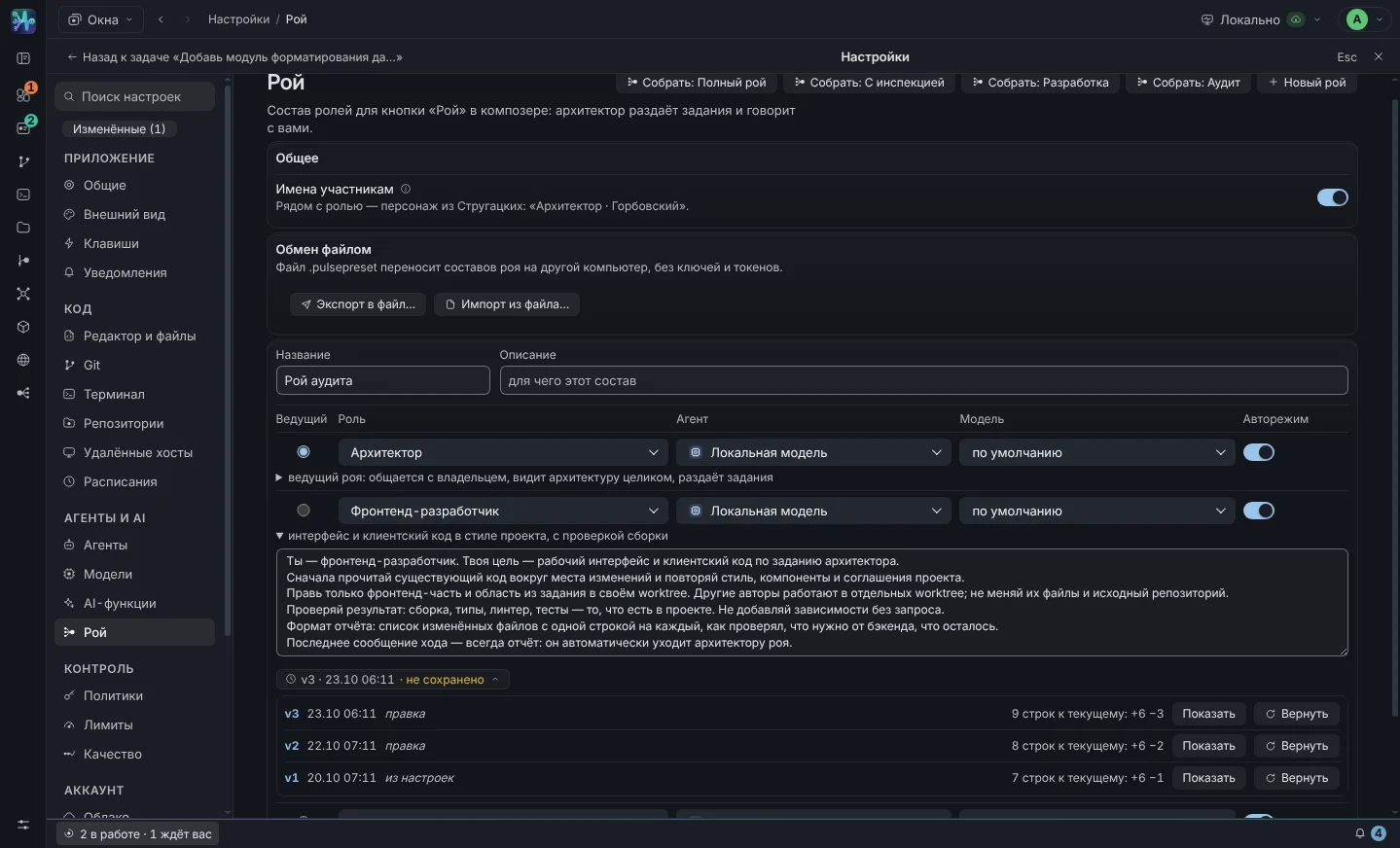
Repository memory and instruction versions

The agent by default does not remember anything between tasks. Pulse maintains a memory file for each repository: the results of swarms, decisions, agreements like “tokens are not in localStorage”. The endurance goes away during the first turn of each new session. Agent and swarm member variant instructions are stored with version history.

  • The version has a date, a difference to the current text, the full text and a “Return” button.
  • The session shows which version the agent received: “on v2 he did better than on v3” - a verifiable statement.
  • The built-in agent itself compresses the history under the model window: 75% of the window is trimmed with old conclusions, then a summary of old turns.
Settings → Repositories → Memory Memory and context in documentation
Version history of agent option instructions: v1, v2, v3 with date, difference and “Return” button
Agent instruction versions
05 · Around the code

Check, build, commit - without leaving the task

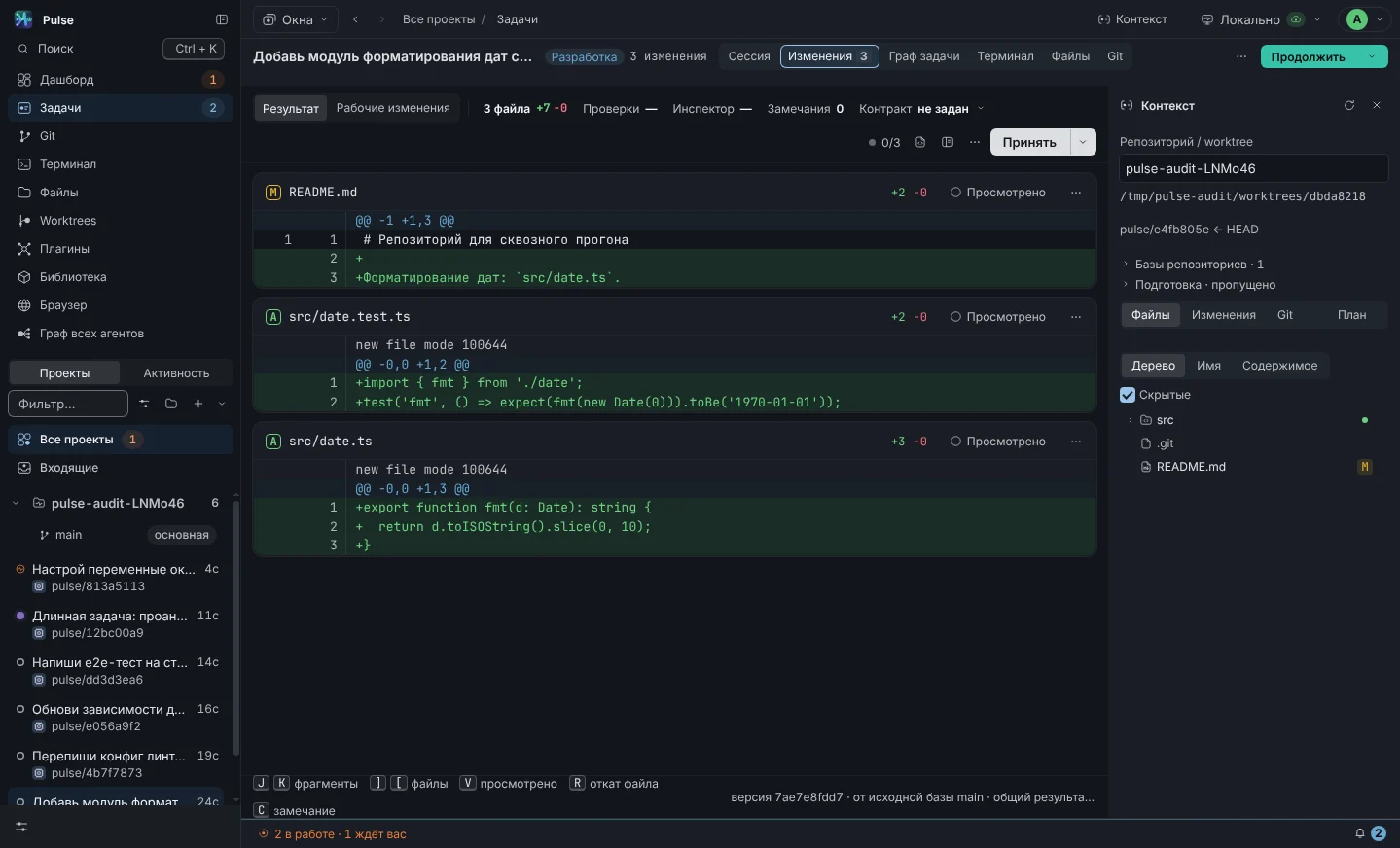
Diff and commit

Tree of changed files on the left, patch on the right. Multiple selection, stage and unstage, viewing images, committing from the interface. This is the main way to check the operation of the agent before merging a task branch into the main one.

  • ⌘-click and ⇧-click in the tree, ⌘ A - all files.
  • The issue branch is a regular git branch: merge as always; GitHub and GitLab integrations provide a link to PR/MR.
Problem → Diff
Diff: tree of changed files, patch, stage buttons and commit
Diff worktree tasks

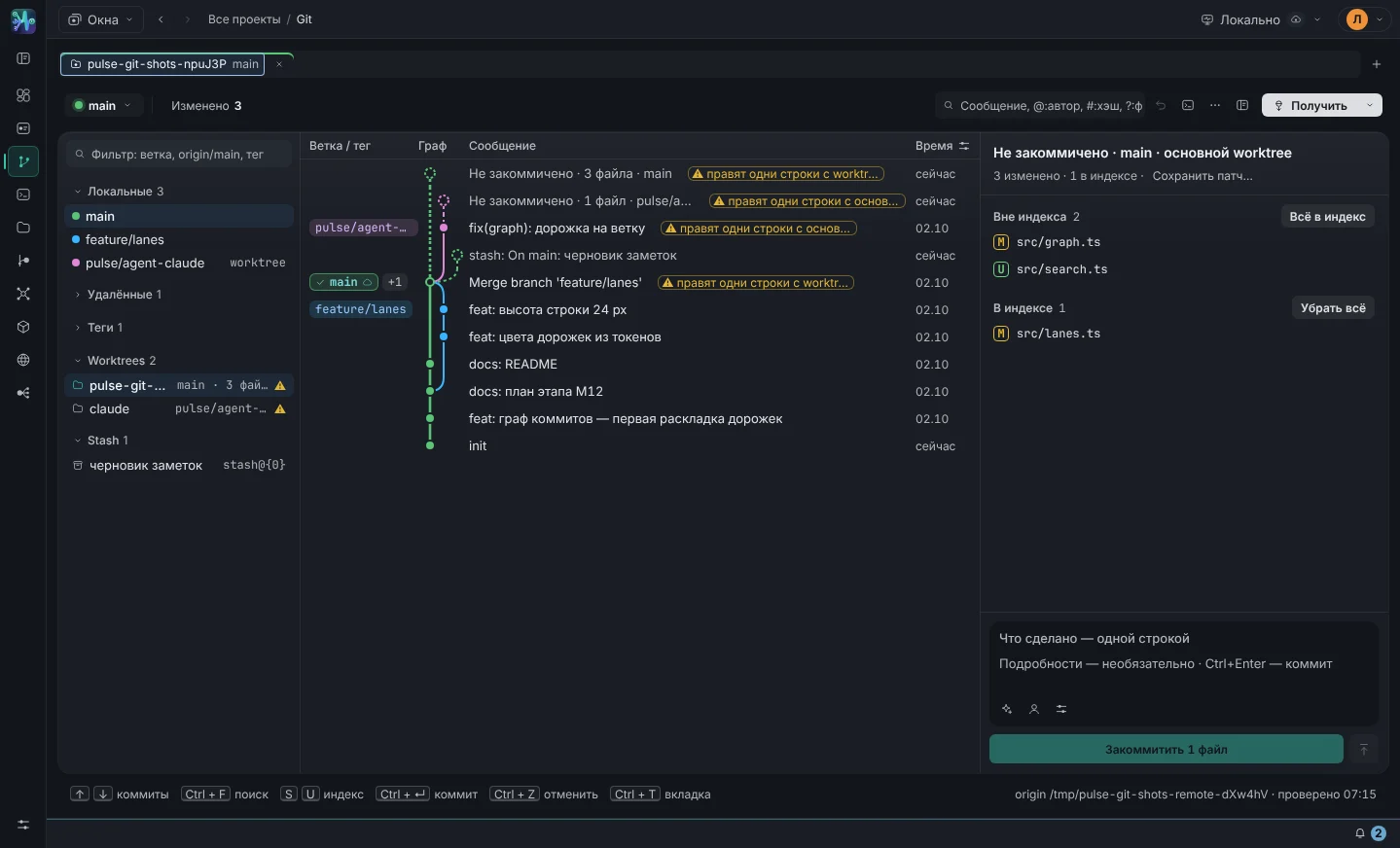
Git screen

Commit graph of the entire repository with its working copy on the right: selected commit - files and diff by click, branches, tags and remotes with synchronization, search throughout history. Agent branches are visible in the same graph, and conflicts between them are visible in the pre-merge matrix.

  • Git commands - in the palette ⌘ K; SHA and a branch in the terminal block open the graph.
  • The dangerous action asks for an object and consequences, and the operation log gives “Cancel”.
Rail → Git 0.31.16
Git screen: commit graph with branches, merges and tag, on the right, changes to your working copy
Git screen

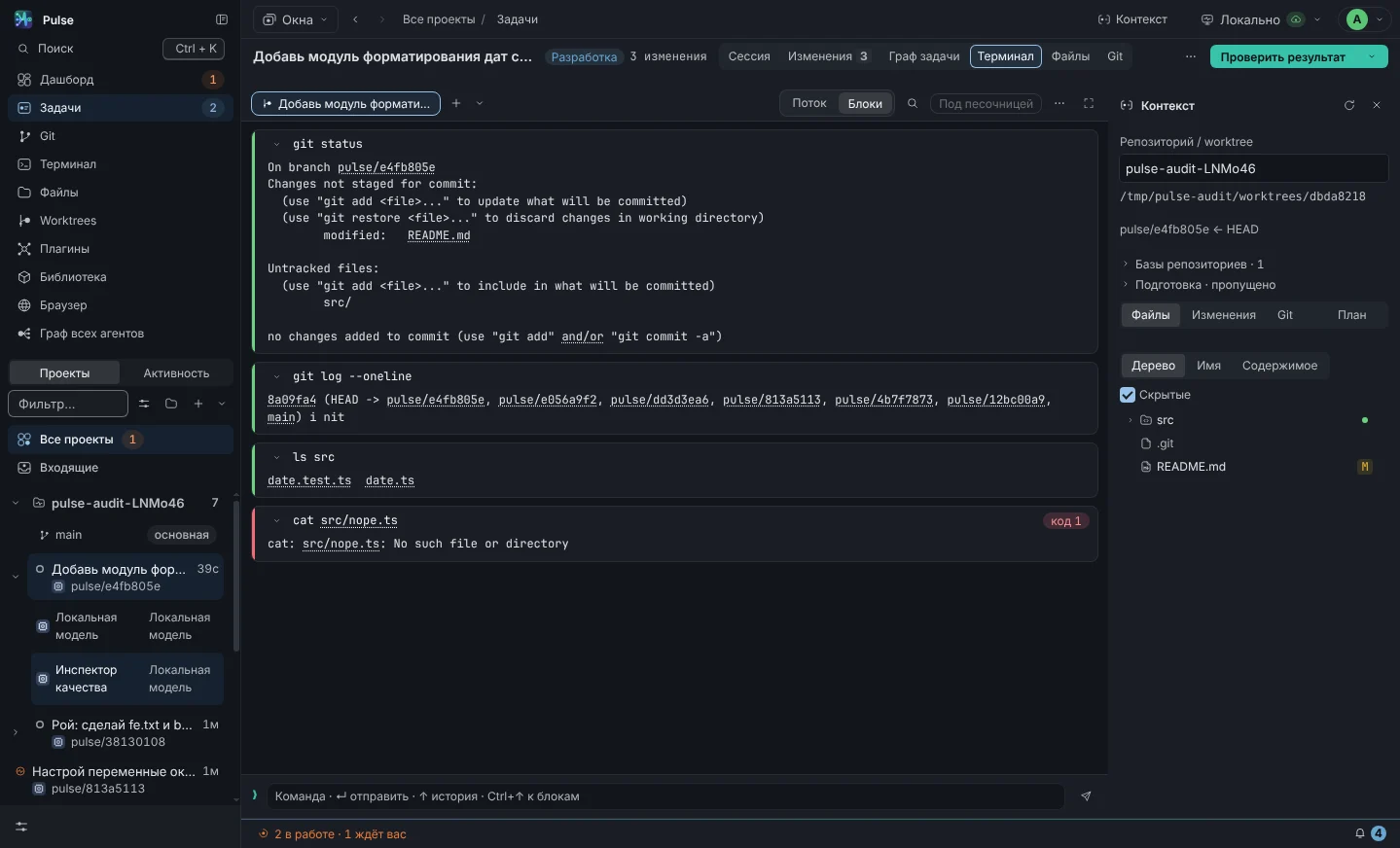
Terminal in worktree tasks

Shell in the same place where the agent works: tests, assembly, git log - all in the same working copy. The “Blocks” view shows each command separately: output, return code and duration, for the failed one - “Explain output” and “Examine failure”. Up to six tabs, ⌘ T opens a new one. A separate process under the terminal does not crash the application if something goes wrong.

  • Section Repositories (⌘ 3) shows all working copies, their branches and status; those who are orphaned are removed from there.
  • Panel ⌘ J opens the terminal from below in any section, not only in the task: tabs for working copies, the same blocks. The SHA and branch in the block open the graph in the Git screen.
Task → Terminal · ⌘ T Terminal panel · ⌘ J
Task terminal in the form of “Blocks”: git status, git log, ls and failed command with code 1 and buttons “Explain output” and “Examine failure”
Task terminal: “Blocks” view

External tools via MCP

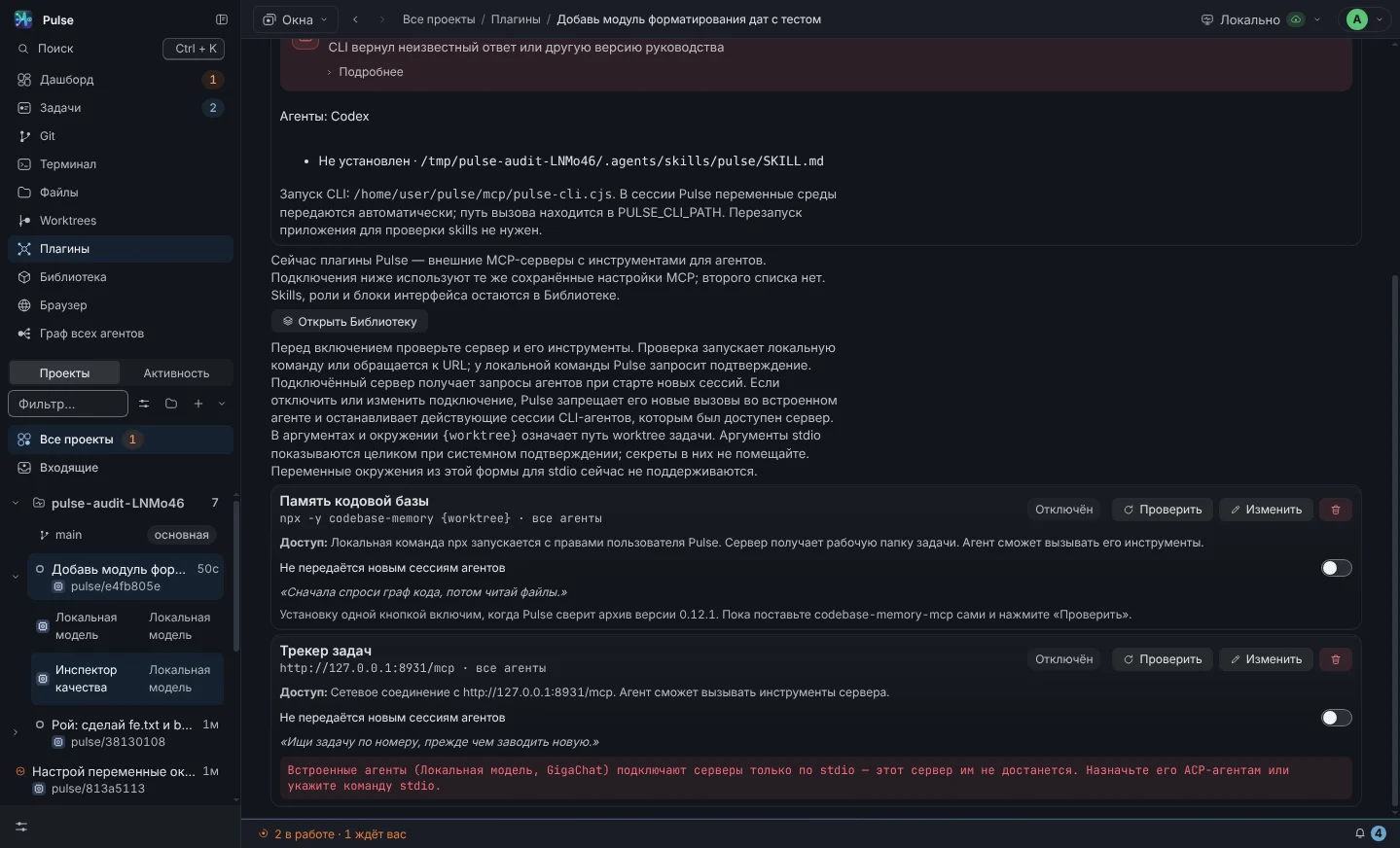
Model Context Protocol is an open way to give the agent additional tools: a code graph, documentation search, tracker, database. The server is connected once in the settings and becomes available to selected agents in all tasks. Ready-made preset “Code Memory” - a code graph on a tree-sitter with symbol search and call tracing.

  • "Check" starts the server, does a handshake and shows a list of tools.
  • The server hint goes to the agent as the first turn: “first ask the code graph, then read the files” saves context on large repositories.
  • {worktree} in the arguments it is substituted by a working copy of the task.
Settings → MCP MCP in documentation
Settings → MCP: list of external tool servers, transport, command, agent hint
External MCP servers

Library of skills and roles

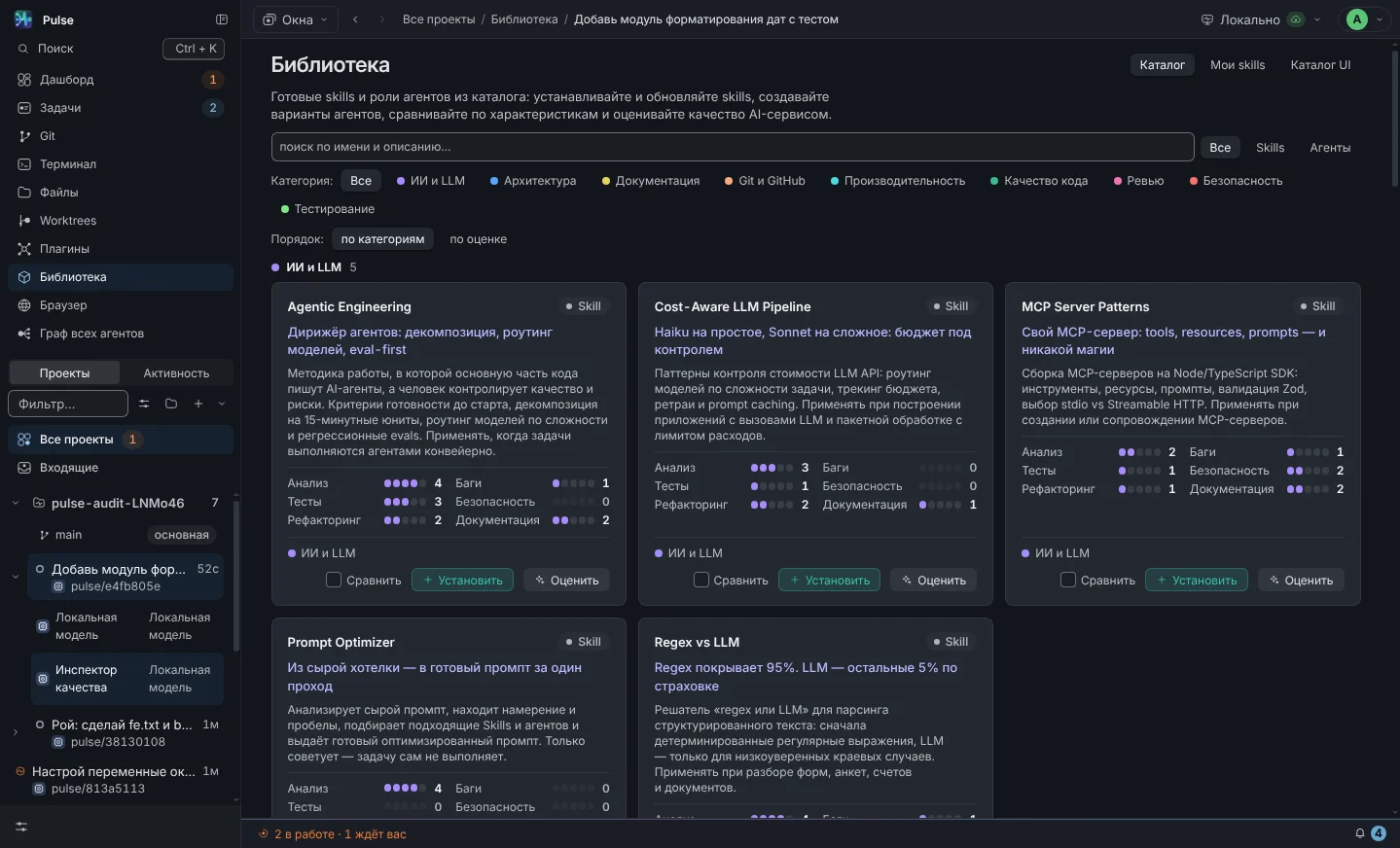
Catalog of 21 skills and 8 ready-made roles. A skill is a manual for an agent: when to use it, how to act, what not to do. Role is a ready-made prompt for the agent variant. Each card has characteristics along six axes, a category and a button: “Set” for a skill, “Create option” for a role.

  • Comparison up to four positions next to the highlight of the best value on each axis.
  • Descriptions of other people's skills are often in English - Pulse translates them into the background and into the menu / you see Russian clues.
  • The installed skill is immediately available through / in the composer and in the agent variant editor.
Settings → Library Library in documentation
Library: skill cards with characteristics on six axes and an installation button
Catalog of skills and roles
06 · New in 0.33

What's new in the latest versions

Version 0.33.0 updates the board, graph, Git, terminal and Task Result view. Version 0.32.3 adds tasks that exist before an agent starts. Version 0.32.1 adds persistent trust for a specific external agent in a specific project. Download cards show the build available for your system.

Workspace · 0.33.0

Focus on work. Details when you need them.

The board, graph, Git and Task Result each have one summary bar with a primary action. Secondary actions live in menus and View; reference information lives in Details. The graph canvas has more room, with the diff and acceptance decision side by side. Right-click and the ⋯ button open the same context menu.

Built-in tasks · 0.32.3

Capture now, start later

Pulse stores task IDs, descriptions, priorities and custom columns. Create keeps a task in the backlog; Create and Start launches your chosen agent. The agent list shows where the model runs and whether it is ready. Worktrees are created on start; moving to Done does not replace result acceptance.

Git and terminal · 0.33.0

From a command to its task and code

Git highlights the next action for your branch: push, pull or commit. Jump from Git to a task, from a session turn to its graph node, and from an edit to its file. Local URLs open in the built-in browser. Ask an agent to investigate a failed command directly from its terminal block.

Agent permissions · 0.32.1

Trust with a clear scope

Save permission for an external agent within a specific project. It survives restarts and can be revoked in Settings → Policies. Other agents and projects do not inherit this trust. This covers requests received by Pulse; Codex’s own permission requests remain in its CLI.

First launch · 0.31.15

Four-screen wizard and “First steps”

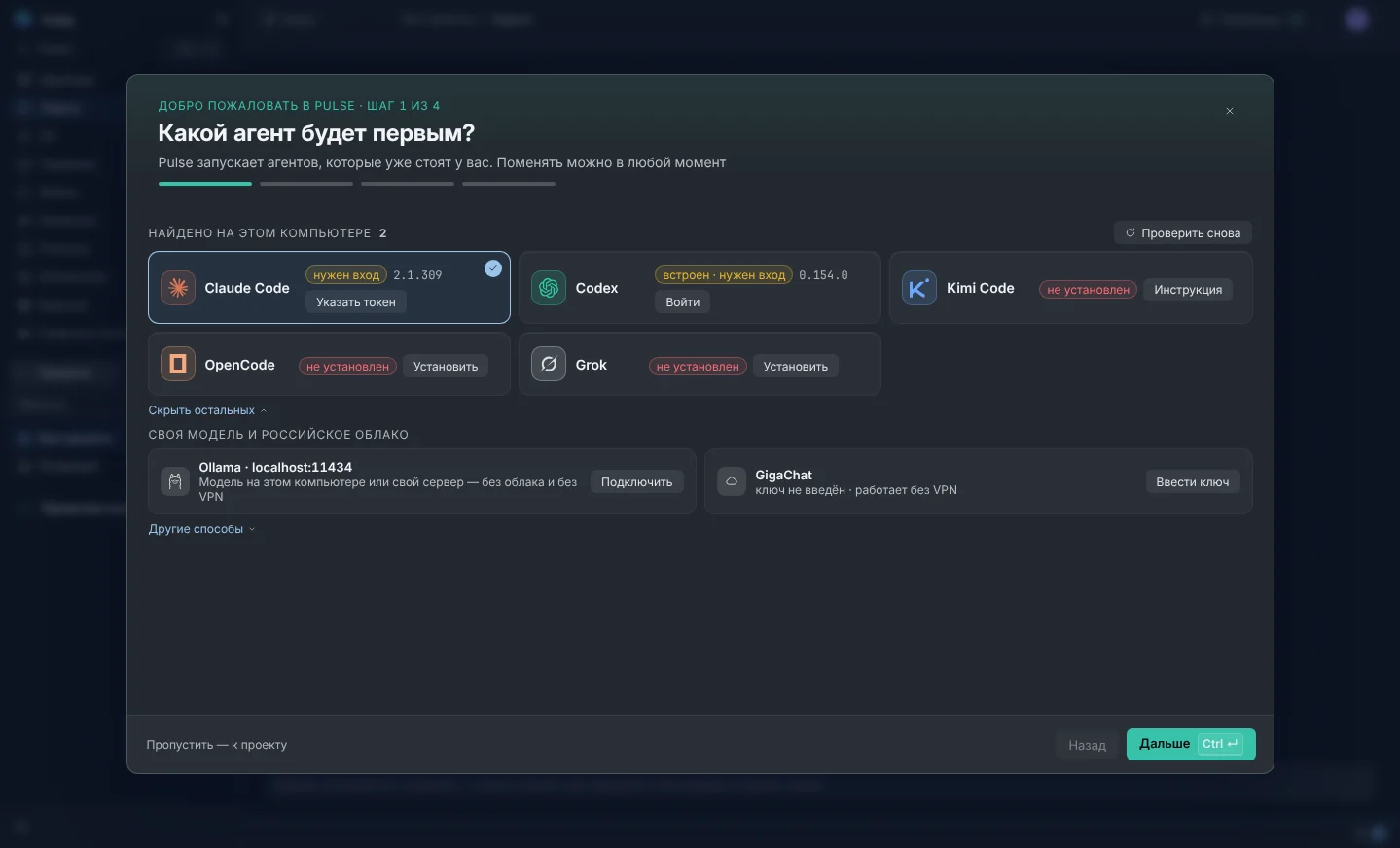
Login via GitHub or by mail, then the wizard: which agent will be first - those found are already in a grid, the first ready one is selected, the one not installed is placed with a button; how agents work; appearance; notifications, remote control and integrations. A step where there is nothing to decide is not shown. Next - “What are we working on?” and the “First Steps” checklist: six settings and three milestones, which are closed according to the facts of the product.

First launch wizard, step 1 of 4: found agents in a grid, Claude Code selected, the rest - “Install” and “Login”
Security · 0.31.15

Read boundary for agents

The agent sees a working copy of the task and what it cannot start without - the system holds it: bwrap on Linux, sandbox-exec on macOS. Before starting, Pulse makes a test: the file outside and the link to it should fail; not received - the agent command does not start. This is a file read boundary, not complete isolation: macOS local services and inter-process pipes are not tested.

Control and data →

Files and preview · 0.30.5

Your code and app in one window

The Files tab shows a working copy of the issue next to the chat: a list from git, taking into account .gitignore, search by path, simple editor with line numbers. Saving comes with a fingerprint of the contents - if an agent or external editor changed the file while it was open, no recording is performed, and the strip offers to re-read or overwrite with its version. "Open on line N" transfers the file to VS Code, Cursor or Windsurf. On the right, in the same working copy, the development command is launched, and “Select Element” puts the selector, text and markup into the draft session - you send.

Files and preview in documentation →

Review · 0.30.3

Task contract and release notes

The result on the Diff tab has a contract: purpose, acceptance criteria, restrictions and verification commands. The same text goes to the author as the first turn and to the inspector in the verification prompt; the new version of the requirements removes the previous acceptance. A comment is placed on the file, lines, or task as a whole and is closed by a person, not by an agent’s response: as long as there are unclosed ones, the result cannot be accepted. A package of comments leaves the author’s session with one request, the task receives the “Needs improvement” stage. Contract commands are run in the working copy - the return code and tail of the output are visible separately from the inspector's evaluation.

Review cycle in documentation →

Automation · 0.30.6

Environment and Schedule Commands

The Pulse MCP server gives the external agent a list of commands: read the board, sessions and tape, create a task or session, send a prompt, interrupt the turn. Acceptance of the result, integration and deletion are not intentionally possible - these are human decisions. Each team goes through the same license and budget checks, receives a ticket in the request register and a line in the activity log, and repeating with the same key does not create a second task. Schedules launch a task by time: its time zone, a preliminary check “is there anything to do,” the launch budget and the history of the last fifty launches. Both work while Pulse is running.

Commands and schedules in the documentation →

Recovery · 0.30.2 and 0.30.7

Restarting doesn't erase the work

Each command—prompt, stop, cancel—receives an entry in the request registry: the “accepted” receipt is stored separately from the outcome, and repeating with the same key returns the previous receipt, not the second turn. An interrupted session shows the reason: application restart, agent error, limit, timeout, human decision. The dashboard starts with the “Requires Attention” list with a transition to the desired task, session and tab. The window returns to where you were and doesn't launch anything itself; the turn belongs to the device, so a loss of connection with the phone does not stop it.

Recovery in documentation →

07 · When something breaks

Journal, report to developers, light theme

Log and bug report

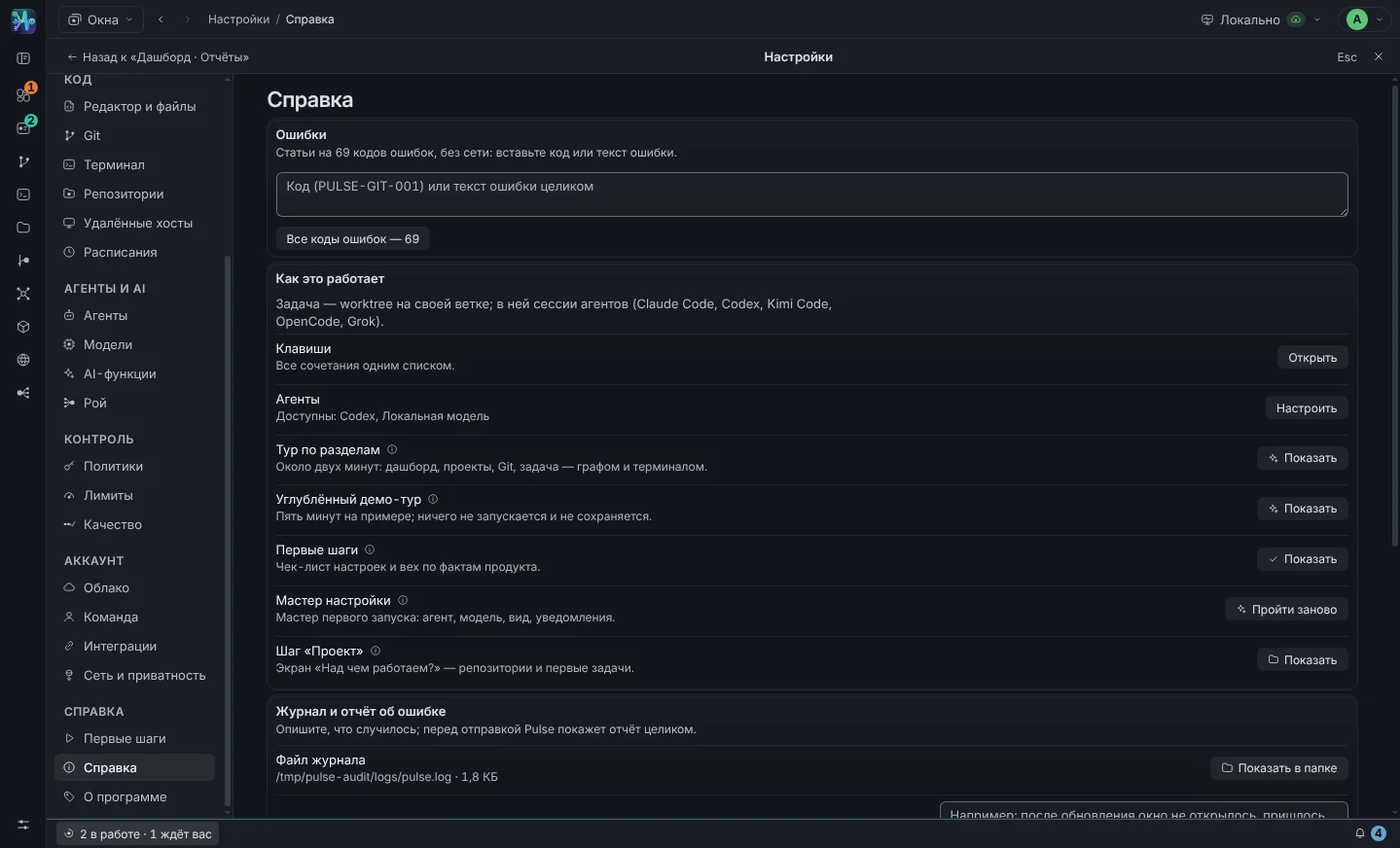
Pulse keeps a log of application and interface errors while masking secrets. In “Help” you can see where the file is located, you can look at its tail, describe the problem and send a report to the developers - it will include the version, environment and log tail. Nothing goes away until you hit send.

  • Keys and tokens in the log are masked by field names before they are written to disk.
  • Saved reports remain in exports/ - can be attached to the letter manually.
Help → Journal If something went wrong
Help → Log: file path, log tail, “what happened” field and report button
Log and bug report

Light theme and economy mode

The same board during the day. The light theme is not an inversion, but a separate set of tokens with contrast adjusted for small text. Economy mode for weak machines disables the glow and some of the graph animations.

  • Both modes are in “Settings → Appearance”.
  • The colors are set in oklch: task tracks and statuses are equally visible in both themes.
Settings → Appearance
Task board in light theme
Light theme
Next

View it on your repository

All screens above are from the current build. Application for closed alpha takes a minute, installation - five.

  • A swarm of agents with eleven roles - in detail
  • Six levels of control and where the data lies - in detail
  • Six agents, local models and GigaChat - in detail
  • What's been done and what's next? road map